Conditional Formatting
The Dashboard Designer control supports conditional formatting. You can apply a custom style to data elements that satisfy a certain condition. Supported elements include cells in Grid or Pivot Grid, and cards in a Card item.
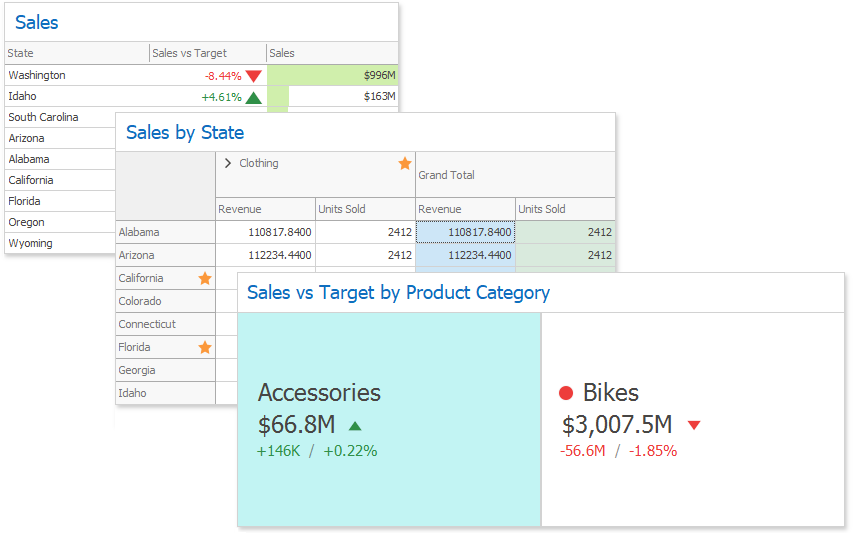
Comparison rules used in conditional formatting can be categorized as follows:
- Value - Compares static values (Greater Than, Less Than, Between, etc.).
- Top-Bottom - Highlights a specific number of top/bottom values (Top N, Bottom N).
- Average - Highlights values above or below the average value.
- A Date Occurring - Highlights date-time values that are within a specified interval.
- Expression - Uses complex conditions to apply formatting. You can also pass dashboard parameters to expressions.
- Icon Ranges - Display a specific icon based on a value range. You can select a predefined set of icons or apply a specific icon to each range.
- Color Ranges - Apply specific colors to different value ranges. You can select a predefined set of colors or use custom appearance settings to highlight values within specified ranges.
- Gradient Ranges - Apply formatting using gradient color scales.
- Bar - Visualizes numeric values as bars. You can also color bars corresponding to positive and negative values using different colors.
- Bar Color Ranges - Visualize numeric values as bars. Values within a range display a specific color.
- Bar Gradient Ranges - Visualize numeric values as bars. Values within a range display a specific bar gradient.
Format conditions that can be applied to different data item types are as follows:
- numeric
- string
- Value (with a condition type set to Equal To, Not Equal To or Text that Contains)
- Expression
date-time
- Value
- A Date Occurring (for dimensions with a continuous date-time group interval)
- Expression
- Icon Ranges
- Color Ranges
- Gradient Ranges
- Bar 1
- Bar Color Ranges 1
-
1 A Card dashboard item does not support these rules.
Create a Format Rule
You can create format rules in the following ways:
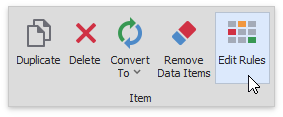
Click the Edit Rules button on the Home ribbon tab.
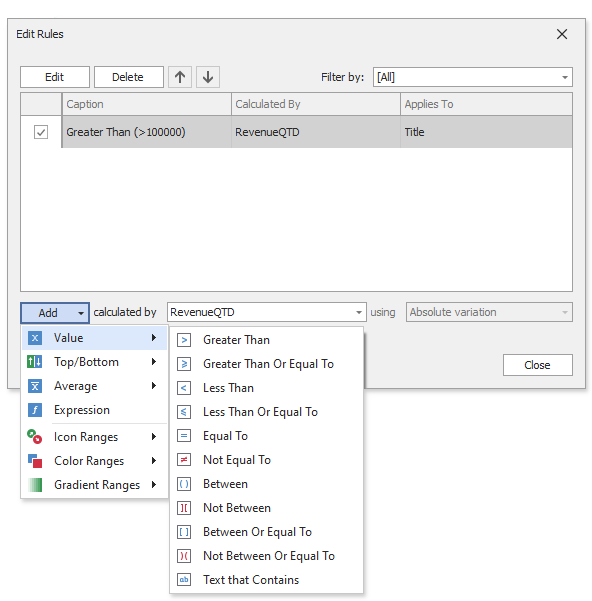
The invoked dialog contains the calculated by combo box, where you can select the item whose values are used to calculate the format rule. You can use measures or dimensions to calculate a format rule. For the Card dashboard item, format rules are also calculated with delta values. If you use delta to calculate a condition, specify the delta type in the using combo box. Click the Add button, select the format rule from the pop-up menu, and specify the rule's condition:
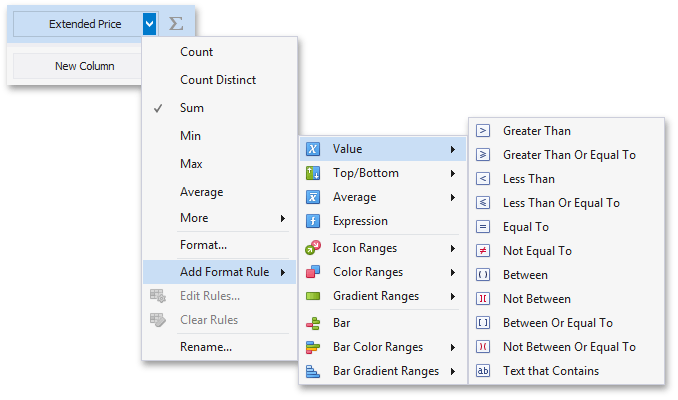
Click the measure/dimension menu button in the Data Item's pane and select Add Format Rule to invoke its pop-up menu. For a Card, this menu is invoked when you click the series dimension/hidden measure menu button.
For a Grid dashboard item, you can also right-click the column header, select Add Format Rule and choose the condition.
Specify appearance settings and set the condition's value for the format rule. Available settings depend on the selected format rule. The image below displays the Greater Than dialog, which corresponds to the Value format condition for a Grid dashboard item. The format condition applies to the ExtendedPrice data item in the Apply to drop-down list.
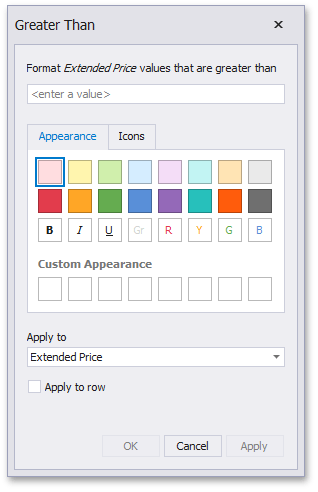
Format rule settings depend on the dashboard item. Refer to the following sections for more information:
Specify Appearance Settings
You can configure and customize current format condition appearance settings.
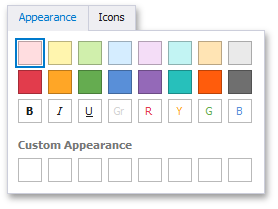
The Appearance tab allows you to choose a predefined background color/font.
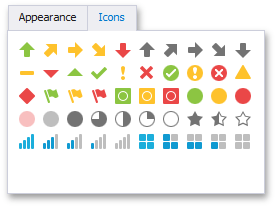
You can add a predefined icon in the Icons tab.
Use the Custom Appearance area in the Appearance tab to add presets containing custom appearance settings. To add a new preset, click an empty square. This invokes the Custom Style Settings dialog, which allows you to specify required appearance settings.
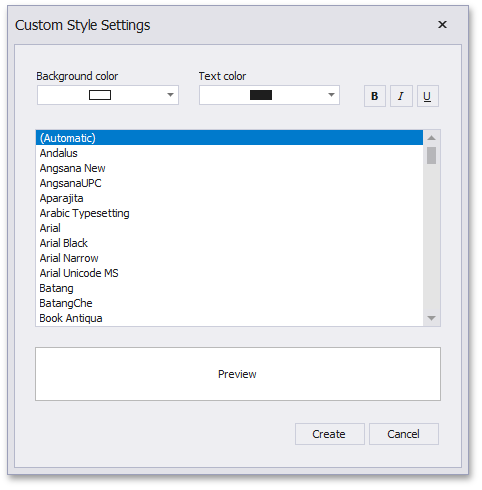
In this dialog, you can specify the background/foreground colors and font settings. Click Create to add a preset.
Edit a Format Rule
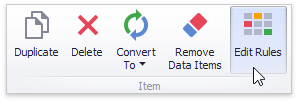
To edit format rules for the selected dashboard item, click the Edit Rules button in the Home ribbon tab.
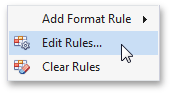
As an alternative, use the Edit Rules data item's menu item or the corresponding item in the dashboard item's context menu.
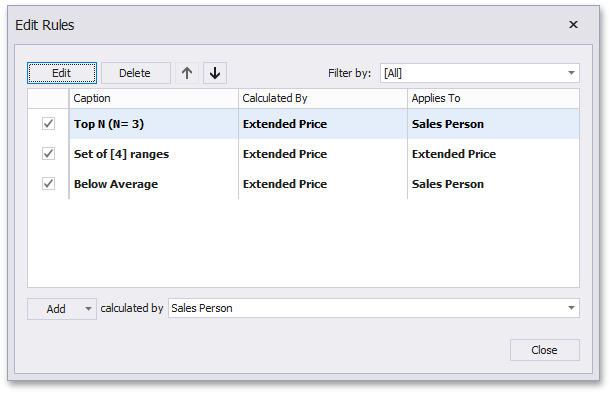
This invokes the Edit Rules dialog containing existing format rules for this dashboard item.
| Action | Description |
|---|---|
| Edit the selected rule | Use the Edit button or double-click the rule. |
| Delete the selected rule | Use the Delete button. |
| Reorder format rules | Use the Up and Down buttons ( and and  icons). You can reorder rules to specify their priority. Rules are applied from top to bottom. The bottom rule has the highest priority. icons). You can reorder rules to specify their priority. Rules are applied from top to bottom. The bottom rule has the highest priority. |
| Enable/disable a rule | Use the corresponding check box in the left column. |
| Create a new rule | Click the Add button and select the format condition. The calculated by combo box allows you to select the measure/dimension that is used to calculate the format rule. For Card, when you create a rule for delta, specify the delta type whose values are used to calculate a condition in the using combo box. |
| Filter format rules by the specified data item | Use the Filter by combo box. |
To clear all rules for the specified data item, use the Clear Rules button in the data item's context menu.