Binding to Federated Data Source
Note
The dashboard should have at least one SQL, Object or Excel data source already connected to it. Otherwise, the Data Federation option is not available in the Data Source Wizard.
To create a federated data source with the Data Source Wizard, perform the following steps:
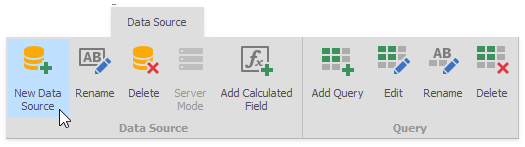
Click the New Data Source button in the Data Source ribbon tab.
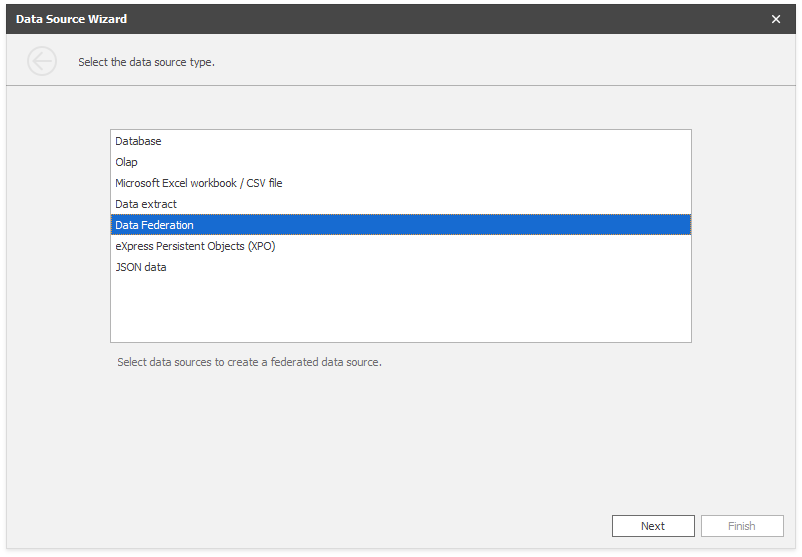
On the first page of the invoked Data Source Wizard dialog, select Data Federation and click Next.
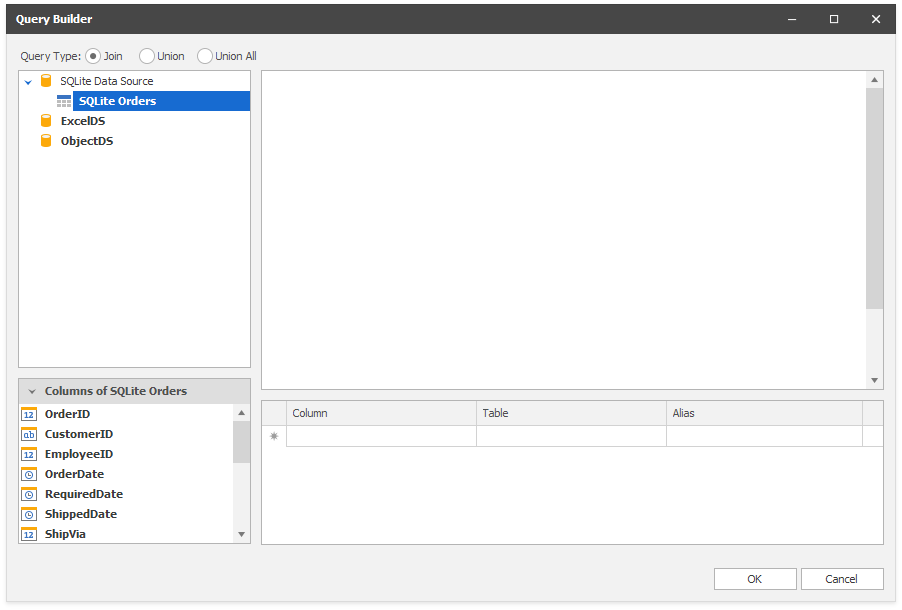
The Query Builder dialog displays available data sources.
Select the Query Type:
Join
Combines rows from two or more tables based on a shared column. The 'join' type specifies records with matching values in both tables.
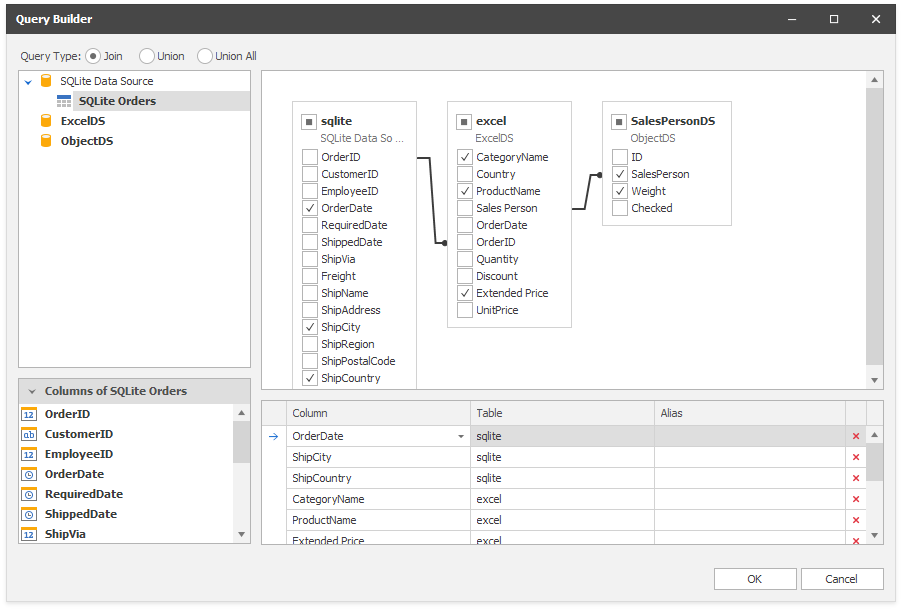
Drag-and-drop the required data sources, specify the related column (to create a relationship between tables), and select columns to include in the query. Columns included in the query are displayed in the bottom pane - where you can configure their settings.
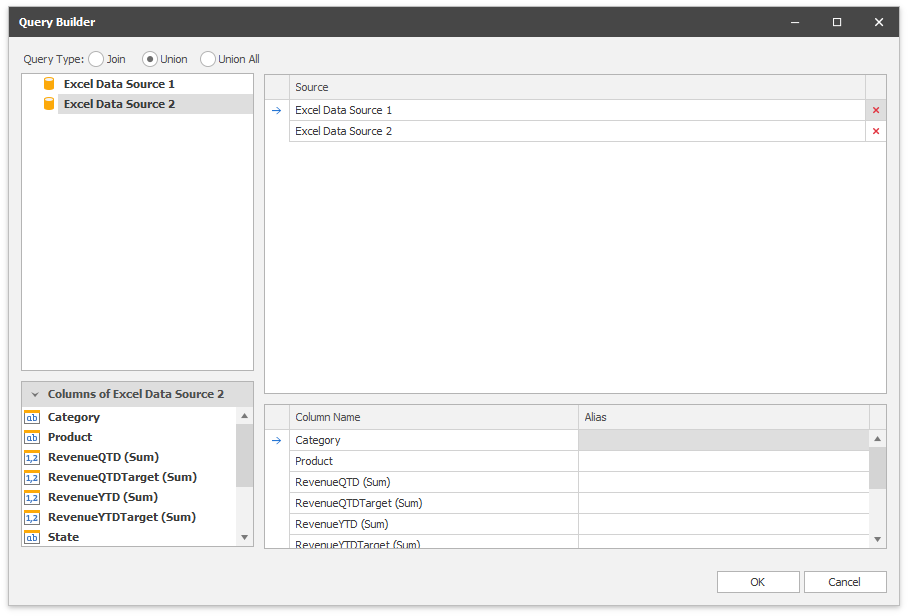
Union
Combines rows from two or more tables into a single data set and removes duplicate rows in merged tables. You can only create a union query for data sources that contain similar columns with the same name. Data types for these columns should be implicitly converted.
Drag-and-drop the data sources to combine them into a single data source. Unlike the join query, you cannot specify columns to include in the union query. Columns included in the query are displayed in the bottom pane, where you can specify the aliases of the newly created columns.
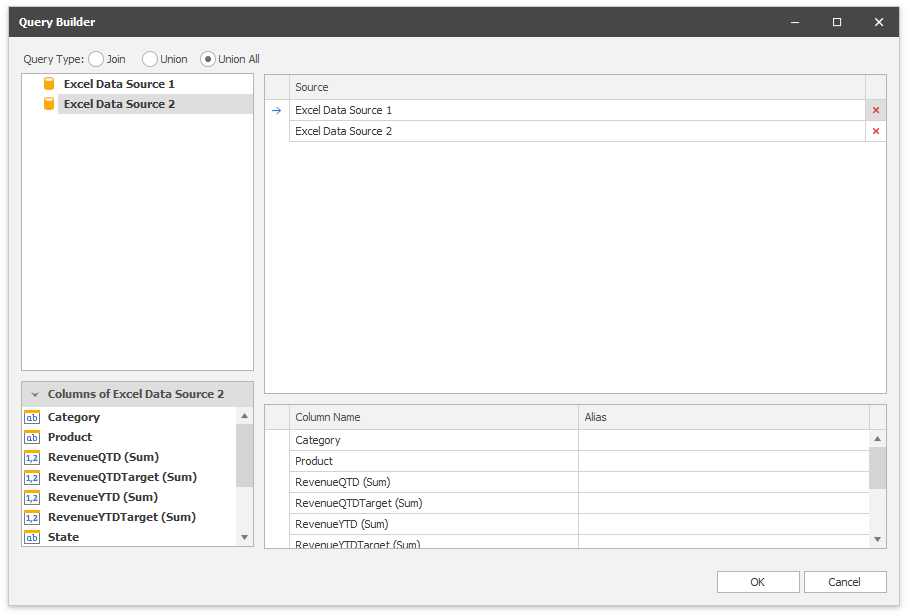
Union All
Operates in the same manner as Union, but duplicates rows from different tables when they contain the same data.
When you are finished, click OK.
The Data Source Browser displays the newly created Federated Data Source.
The image below displays a new Federation Data Source 1 with a joined SQlite Orders query.
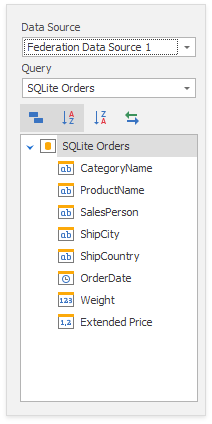
The query name is the same as the root table's name in the query builder. Click the Rename button in the Query group on the Data Source ribbon tab to change the query name.