Conditionally Change a Band's Visibility
This document describes how to change a report band's visibility.
The report created in this tutorial contains two Detail sub-bands with different report controls. These sub-bands are used to display discontinued and current products.
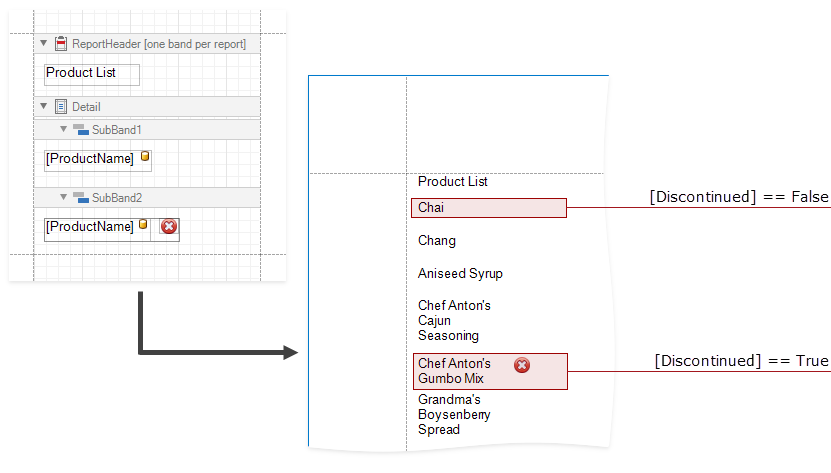
The steps below demonstrate how to change a band's visibility based on a field's value.
Create formatting rule(s).
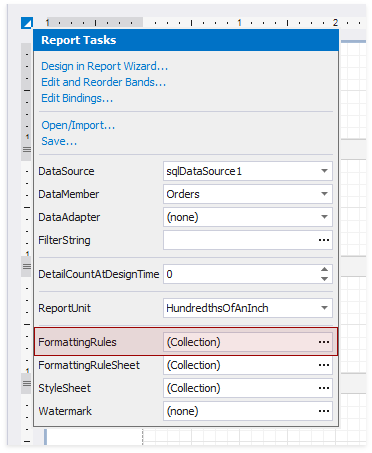
Select a report and click its smart tag. In the invoked actions list, click the FormattingRules property's ellipsis button.
In the Formatting Rules Editor, click the Edit Rule Sheet... button to invoke the Formatting Rule Sheet Editor. Click
 to create a new formatting rule.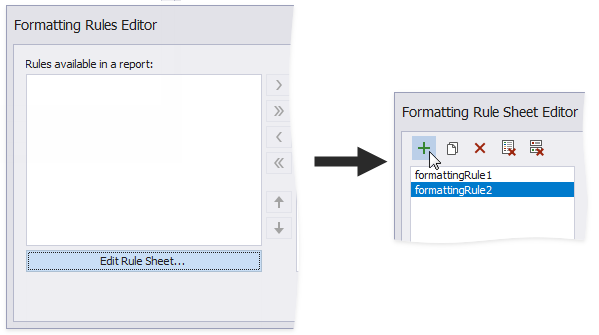
In the tutorial's report, two rules are added.
Specify a condition for the rule. Click the ellipsis button for the rule's Condition property and specify the expression in the invoked Formatting Rules Editor.
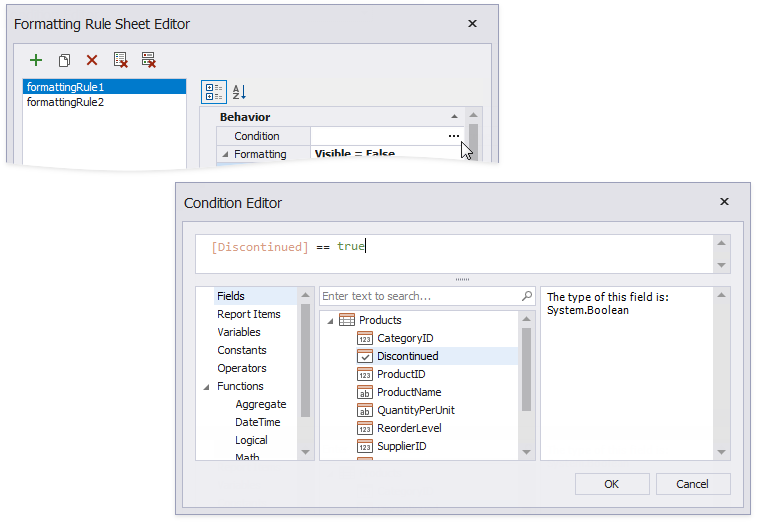
Here, the [Discontinued] == true expression is set for the formattingRule1 and the [Discontinued] == false expression - for the formattingRule2.
Specify the Visible property for the rule.
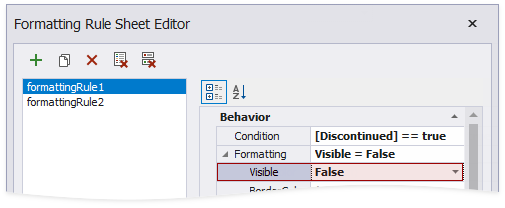
Here, the Visible property is set to False for both rules.
Apply the rule(s) to the required band(s).
Select a band, invoke the Formatting Rules Editor, and move a rule to the Rules applied to a control section.
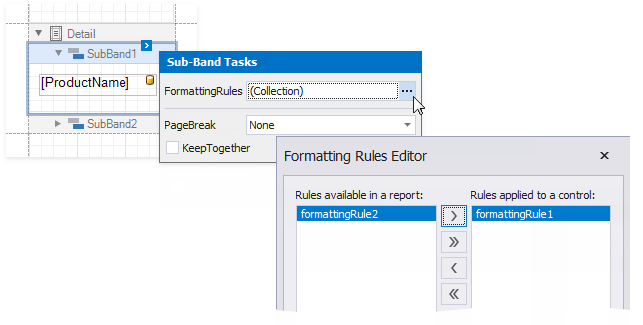
Here, the formattingRule1 is applied to SubBand1, and the formattingRule2 to SubBand2.
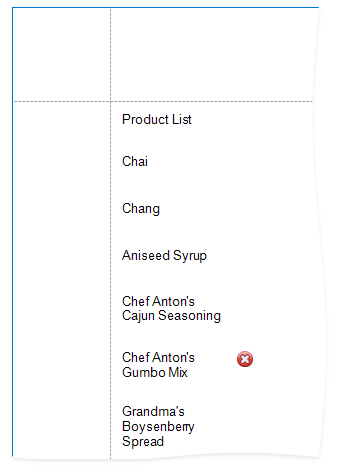
The Print Preview displays how changes to band visibility influence the Product List. The SubBand1 is used to display products that have the Discontinuous field set to false, and the SubBand2 is used to display the discontinued products.