Calculate a Weighted Average
Note
Use this approach if expressions are enabled in the Report Designer (the Label's smart tag includes the Expression property).
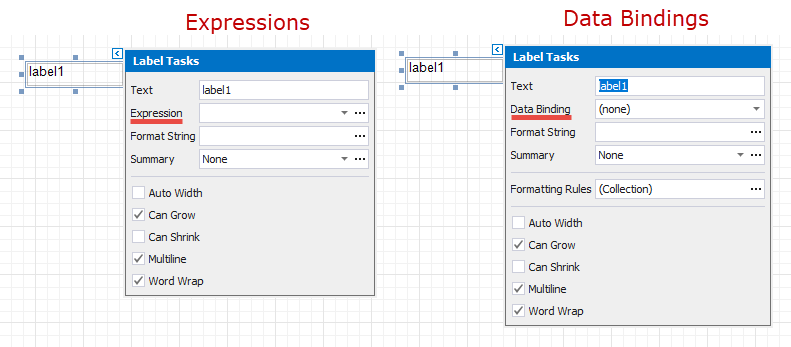
See the Calculate a Weighted Average topic in the Shape Data (Data Bindings) section to learn about an alternative approach.
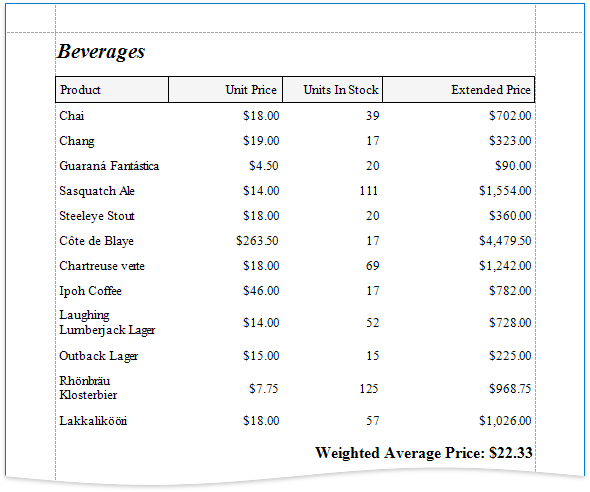
Follow the steps below to calculate a weighted average:
- Open an existing report or create a new one from scratch.
- Bind a report to a required data source.
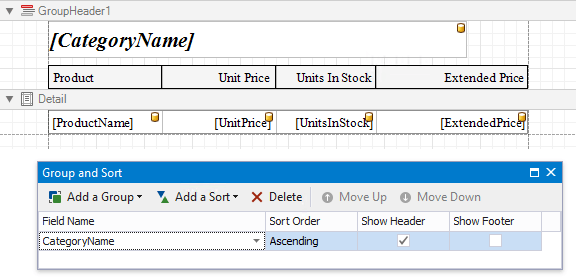
Group the report's data using the Group and Sort Panel and construct a layout like the following:
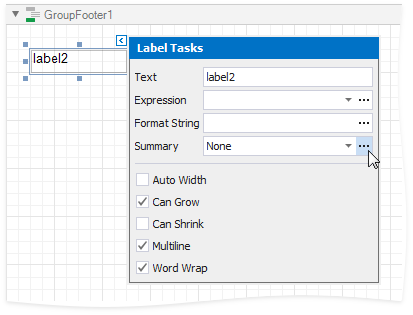
Add the Group Footer band to the report and drop a Label control on this band to display the summary result. Click the label's smart tag, then click the Summary field's ellipsis button.
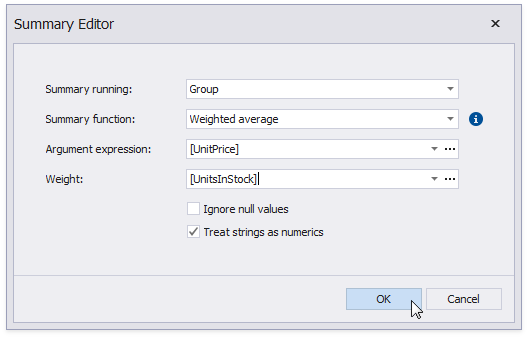
In the invoked Summary Editor window:
- Set the Summary Running property to Group.
- Set the Summary Function property to Weighed average.
Set the Argument Expression property to the field to count the weighted average on, and the Weight property to the field that provides weights.
You can also use the control's Format String property to format the summary value. For instance, set this property to Weighted Average Price: {0:c2}.