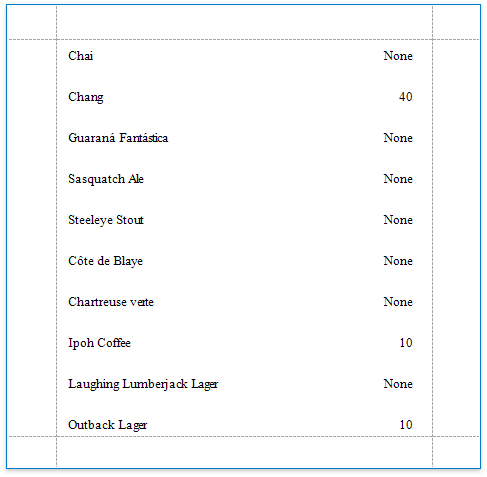
Conditionally Change a Label's Text
This document describes how to display different values in a report control based on a specified logical condition.
Note
Use this approach if expressions are enabled in the Report Designer (the Label's smart tag includes the Expression property).
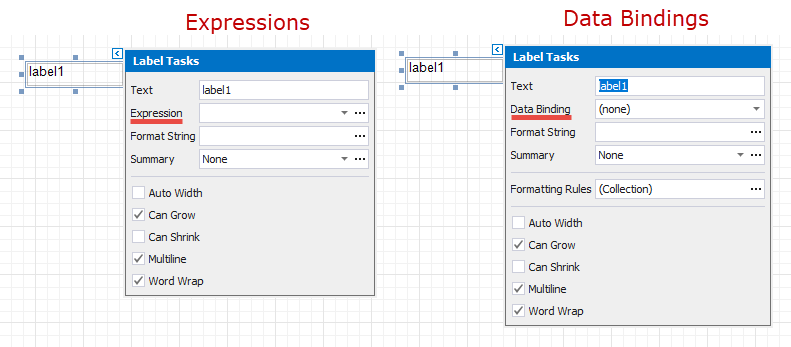
See the Conditionally Change a Label's Text topic in the Shape Data (Data Bindings) section to learn about an alternative approach.
After you bound your report to data and specified a bound data field in a report control's Expression property, you can make this control display different values based on a specified logical condition:
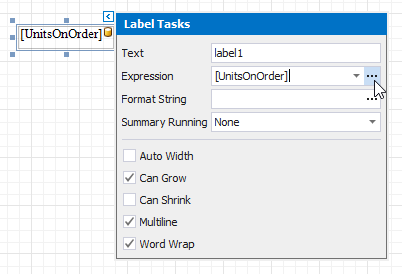
Invoke the control's smart tag and click its Expression property's ellipsis button.
In the invoked Expression Editor, specify the required expression.
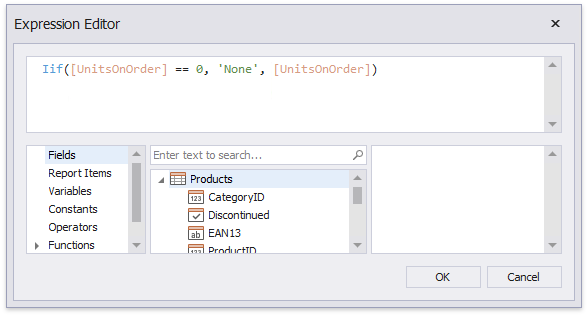
Use the Iif function to define the condition. For example:
Iif([UnitsOnOrder] == 0, 'None', [UnitsOnOrder])
This expression means that if the data field's value is zero, the control's text is set to 'None'; otherwise, it displays the actual field value.
When switching to Print Preview, you can see the report control displaying the assigned values.