Format Data
This document demonstrates how to specify value formatting for report elements (for instance, format numeric values as a currency or apply a percent format).
Note
Use this approach if expressions are enabled in the Report Designer (the Label's smart tag includes the Expression property).
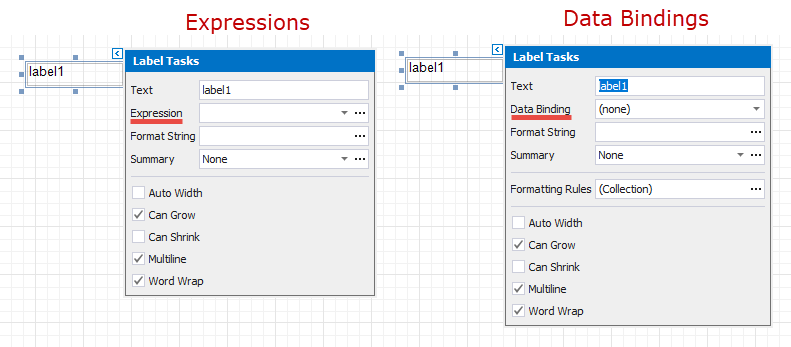
See the Format Data topic in the Shape Data (Data Bindings) section to learn about an alternative approach.
After you bound your report to data and specified a bound data field in a report control's Expression property, you can format data values in a report.
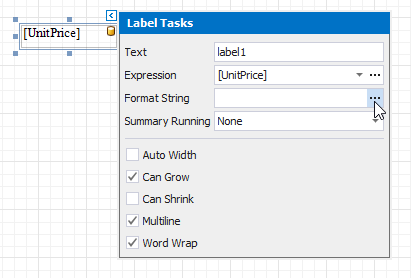
Invoke the control's smart tag and click the Format String property's ellipsis button.
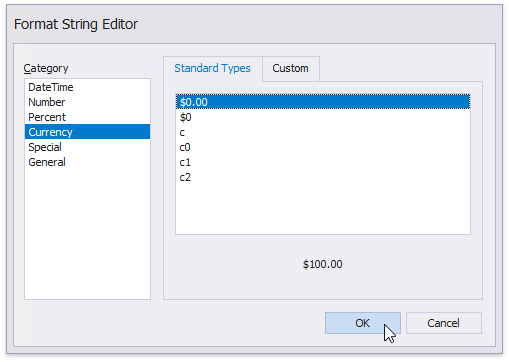
This invokes the Format String Editor where you can specify the required format.
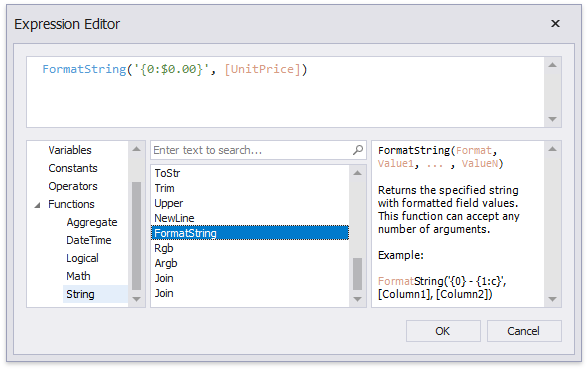
Alternatively, you can use the FormatString function within the expression you specified for the report control.
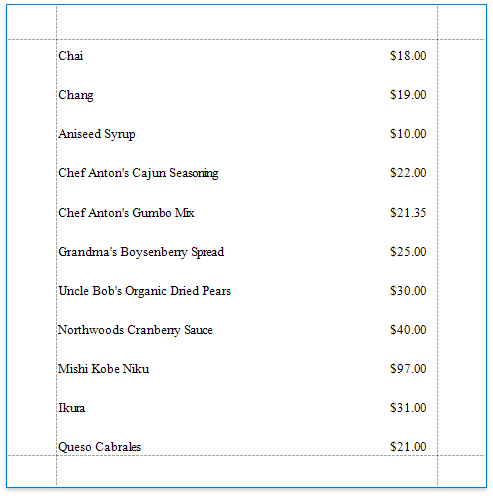
When switching to Print Preview, you can view the report control displaying values with the specified format.
You can use the control's Xlsx Format String property to assign a native Excel format that is used for exporting reports to XLSX.