Print Preview
This document describes the Print Preview window, which displays published documents in a Snap application.
Print Preview Elements
The Print Preview displays a report document as it will appear on paper.
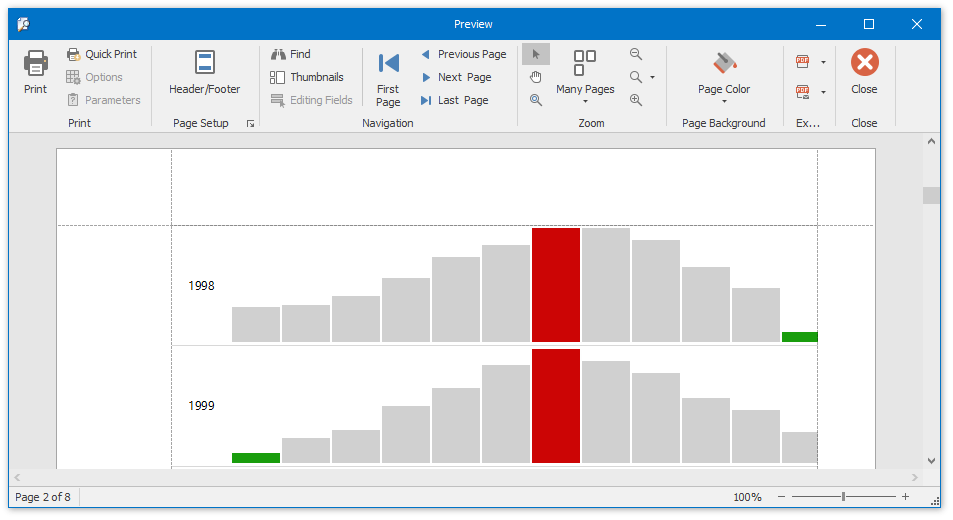
The user interface of the Print Preview window consists of the following elements.
Ribbon - contains the document management and navigation commands divided into logical groups;

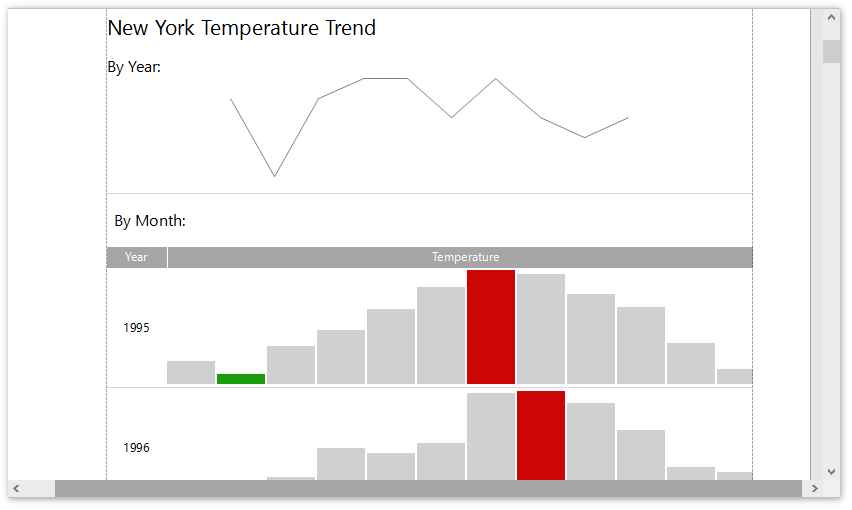
Document Pages Area - displays a report document and provides vertical and horizontal scroll bars to navigate through the report.
Status Bar - displays the page number of the currently selected page (out of a total number of pages), shows the progress bar while a document is being loaded, and enables document zooming.

Invoke a Print Preview
To assemble and preview a tabular report, click Print Preview in the General Tools: File toolbar.
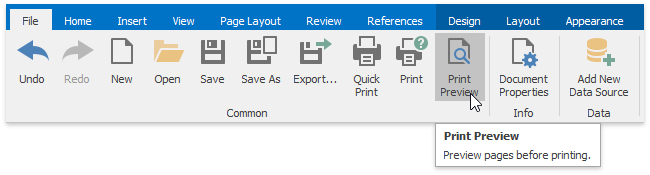
Using the option above to preview a mail merge report will only display the document obtained from the first data source record.
To assemble and preview a mail merge report, click Finish & Merge in the Data Tools: Mail Merge toolbar and select Print Preview in the invoked drop-down menu.
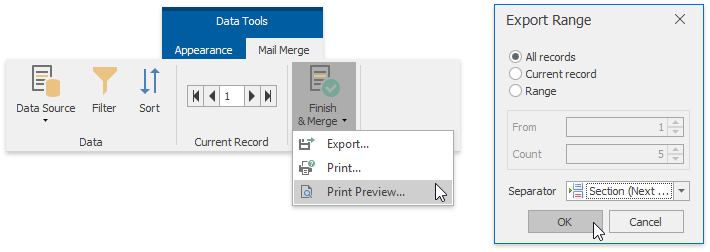
In the invoked Export Range dialog, specify the required range of data records and click OK.