Page and View Settings
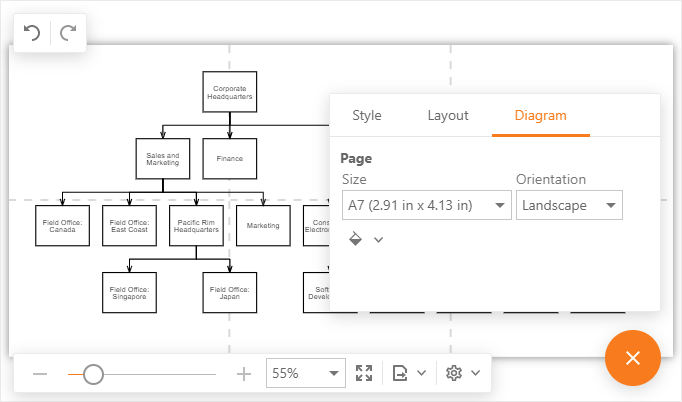
The Diagram tool divides the work area into pages. Use the commands on the Properties > Diagram tab to specify a page's size, orientation, and color.
Simple View
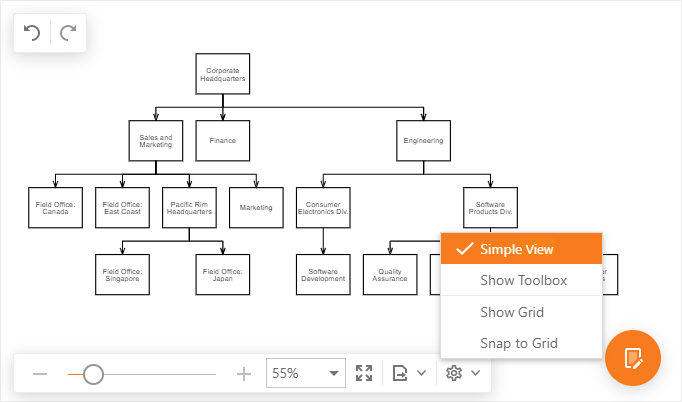
In simple view mode, the Diagram tool does not divide the work area into pages and a content occupies all the available work area.
To switch to simple view mode, select the Simple View command on the View toolbar.
Grid Settings
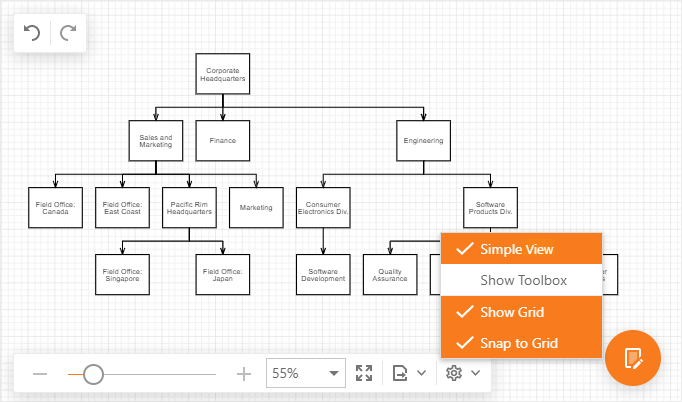
Use the following commands on the View toolbar to control grid settings.
- Show Grid - controls the grid visibility.
- Snap to Grid - specifies whether shapes and connectors are snapped to the grid.
Full Screen
To switch to full screen mode, click the Full Screen command on the View toolbar or press F11 while the Diagram tool has focus.
